Create a form flow
To create a form flow, you must use both the Build and Form Flows tabs to associate form flow questions with a form flow and its steps. To plan and create a form flow efficiently, you can build your form with its form flow questions before moving to the Form Flows tab and associate those questions with steps.
You can create a form flow from the Build tab or the Form Flows tab.
-
Build tab - In the Form Flow Button’s side panel under Details, click Step setup, and then click Next when you see a dialog box that says no form flows exist. When there are existing form flows, the Form Flows tab opens.
-
Form Flows tab – Click the Create form flow button.
Who Can start the Form Flow?
When you set up the first step, you choose who can start the process. You have two options:
Original Reporter
This is the person who reports the issue or creates the record.
Use this option when the process must start with the person who created the item.
Form Flow Initiator (Recommended)
This is the person who starts the form flow. It is not a fixed role. Choose this option to allow any authorized user to start the form flow, even if they did not create the original item. This option gives you more flexibility and helps prevent delays if the original reporter is not available.
Key Compliance Note
The Form Flow Initiator role is a dynamic role. It links to the person who starts Step 1. Make sure permissions are set correctly so that only the right users can start the form flow.
Add this choice to your compliance checklist to support audit tracking.
In most cases, you should select Form Flow Initiator. It allows more users to participate and helps avoid bottlenecks. Make sure your tracking meets compliance needs, such as approvals, timestamps and audit logs.
Steps
Create a form flow from the Build tab
-
Add a Form Flow question.
-
Select the form flow button question, and then on the left panel, under Details, fill in the Button text name.
-
Click Step setup. The No form flows exist dialog box shows. If you have existing form flows, you will automatically land in the Form Flows tab.
-
In the No form flows exist dialog box, click Next. The Create form flow dialog box shows.
-
In the Create form flow dialog box, enter the Form flow name and Description, and then click Create. A new form flow shows with Step 1 as the first default card.
-
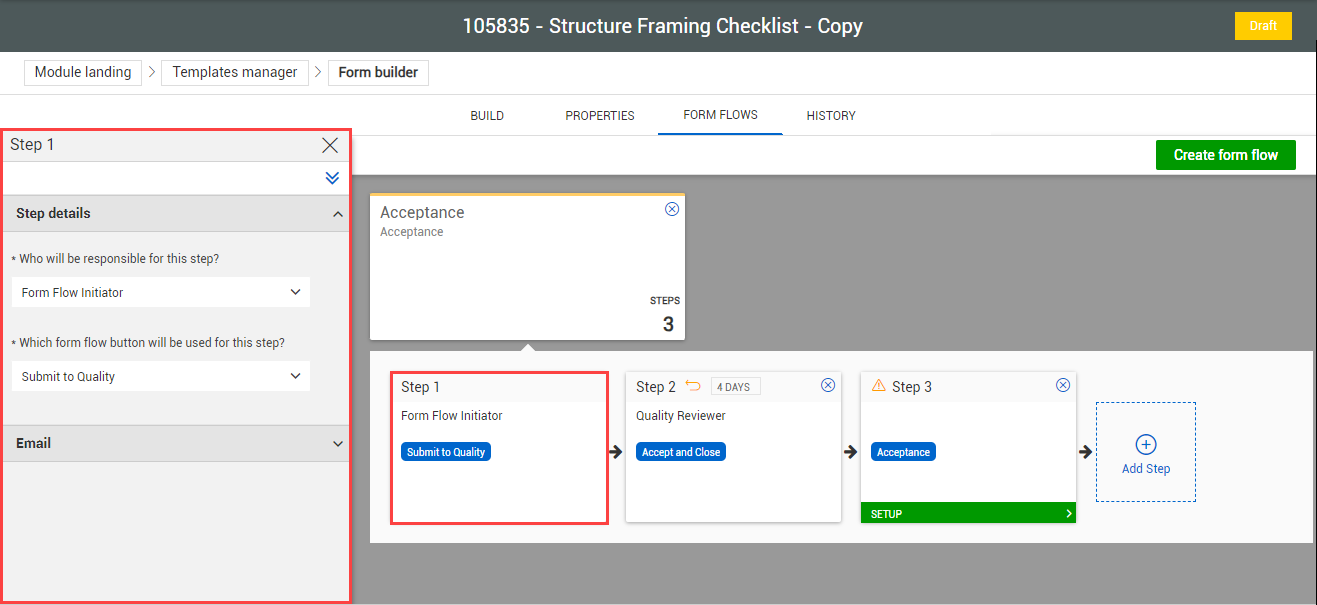
Select the Step 1 card.
-
On the left panel under Step 1, in Step details, select the following:
-
Who will be responsible for this step – Original Reporter or Form Flow Initiator
-
Which form flow button will be used for this step – The buttons that are available have been added and configured in the Build tab in step 1 and 2.
-
Optionally, if you want to send an email notification to the responsible party for this step, click Add email in the Email section and complete the dialog box. The email notification indicates the start of the step after clicking its form flow button, not the completion of the step.
Access configuration is not available in Step 1. You can configure access for each individual step thereafter.
Considerations
You must have Level 3 – Account Admin permissions in InEight Platform or a Compliance or Completions role with the applicable permissions.